Build your first Lernie course in 15 minutes
From an empty page to a published course with modules, readings and a quiz. A step-by-step walkthrough for instructors new to Lernie.
By Lernie team
Product · October 9, 2026 · 2 min read
Setting up a course shouldn't take a weekend. In Lernie you can go from nothing to a course your students can open in about fifteen minutes. Here's how.
1. Create the course
Open Courses and choose New course. Give it a title and a course code (for example CS-210), pick the term it belongs to, and add a banner image if you have one. Lernie saves it as a draft, so students can't see anything until you're ready.
2. Plan your weeks as modules
Modules are the backbone of a Lernie course. Most instructors create one module per week or per topic:
- Week 1 · Complexity and Big-O
- Week 2 · Arrays and linked lists
- Week 3 · Stacks, queues and trees
Open the Builder and add a module for each. You can drag modules and pages to reorder them at any time.
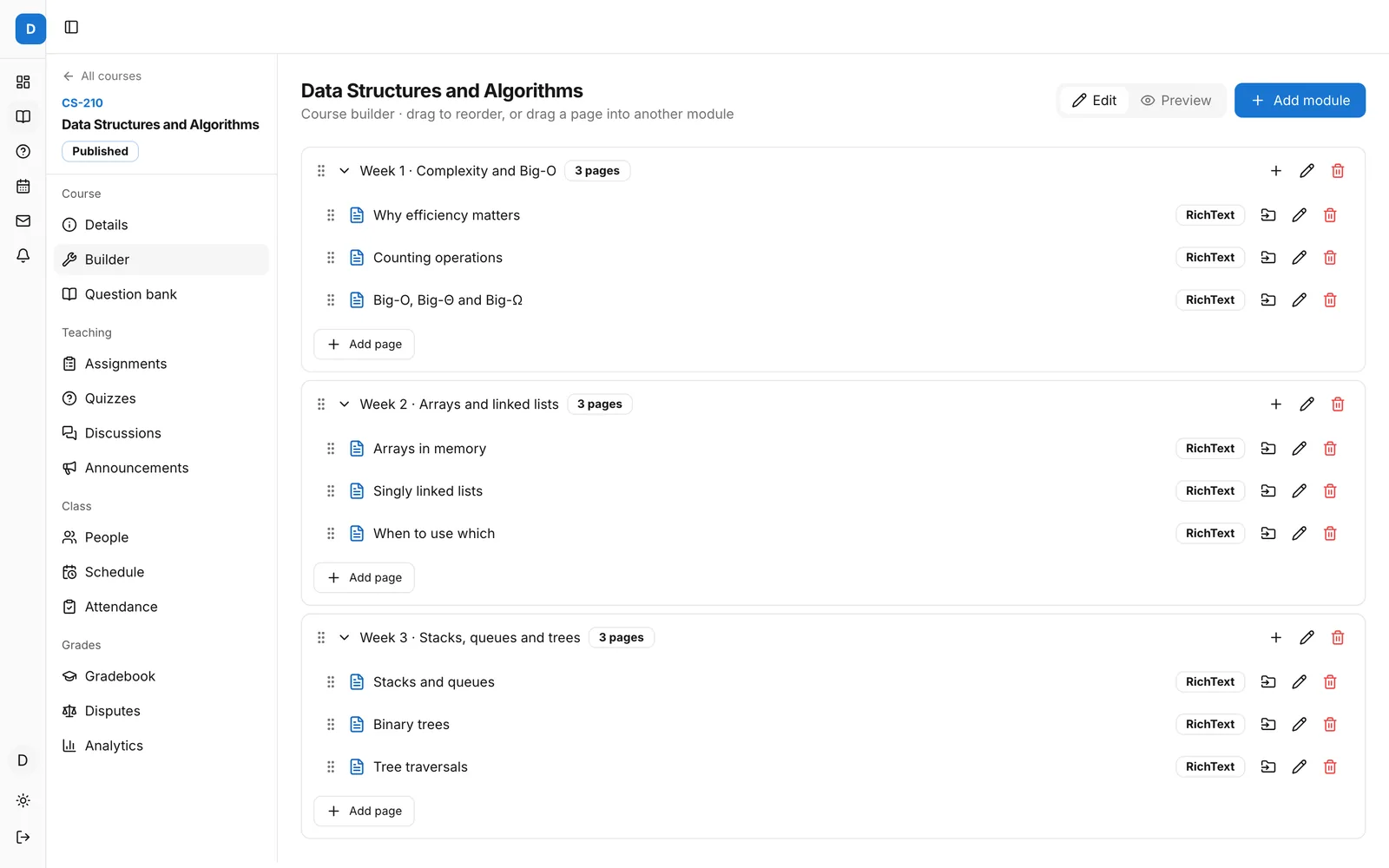 The Lernie course builder with three weekly modules
3. Add pages, files and links
Inside each module, add pages. A page can be rich text you write in Lernie, an uploaded PDF or slide deck, a video, or a link to an outside resource. Keep pages short and focused: one idea per page makes progress easier to track and easier to revisit before exams.
Tip: if a module should only open after the previous one is finished, set its unlock rule to Previous module. Students then move through the course in the order you planned.
4. Add an assignment and a quiz
Under Assignments, create your first piece of work with a deadline, a maximum score and a late policy. Under Quizzes, build a short check-in quiz. You can write questions, pull them from a shared question bank or import a whole quiz from Word.
Link both into the right module so students find them in context.
5. Publish and invite students
When the course looks right, use Preview to see it exactly as a student will. Then publish it and add students from People, by email, CSV import or an enrolment code.
That's it. Your students now see the course on their dashboard, with progress bars, upcoming deadlines and a Continue button that takes them straight to the next page.
What next?
- Set up grade categories so totals add up the way your syllabus says.
- Add your weekly timetable so classes appear on every student's calendar.
- Try Lernie AI to draft next term's course from your existing materials.